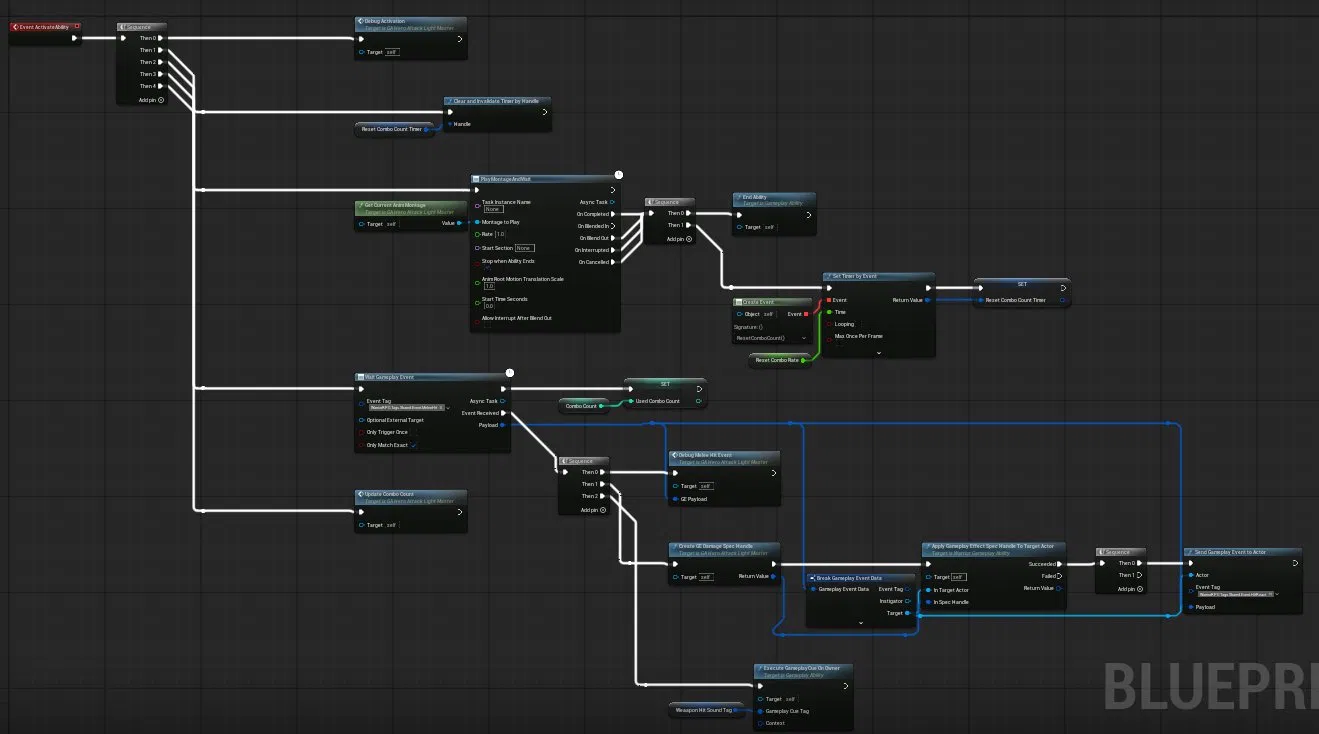

Two paid plugins — Blueprint Assist and Electronic Nodes — have become a permanent part of my Unreal Engine 5 setup across every personal project. The initial hesitation was real: both looked like cosmetic tools, and manual node arrangement seemed like something a disciplined developer could just handle. After enabling them across multiple projects, that assumption turned out to be wrong.
The Blueprint Assist plugin handles automatic node formatting across the Blueprint editor. Pressing F in any Blueprint window reformats the entire graph — nodes align, wires untangle, execution flow becomes readable without any manual repositioning. The plugin ships with separate formatter configurations for 16 graph types, including Blueprint, Behavior Tree, Animation Graph, Animation State Graph, Niagara, Control Rig, and Metasound. Each graph type formats according to its own layout direction and spacing rules.
- Formatting Style set to Expanded, Parameter Style to Left-side: parameter nodes appear to the left of their consumer, which keeps the execution chain on the right and avoids overlap in dense graphs.
- Execution and Parameter Wiring Style both set to Always Merge: wires converge rather than running parallel, which significantly reduces visual noise in graphs with multiple branches feeding the same target.
- Auto Formatting configured to Format all connected nodes: the formatter acts on the full connected subgraph, not just the selected node — one keypress reformats an entire ability or event handler.
- Knot nodes are created automatically at wire junctions, and Helixing is limited by pin count and height thresholds — the formatter avoids helix layouts unless the wire distance genuinely requires one.
- The Behavior Tree formatter runs with its own direction and root node settings. The same
Fkey produces a clean vertical hierarchy in BT graphs without any extra configuration. - Blueprint Assist does not handle comment nodes. The author recommends pairing it with the free AutoSizeComments plugin, which manages comment box sizing automatically and fills that gap cleanly.
My personal Blueprint style relies heavily on Sequence nodes, custom functions, and custom events to break logic into distinct vertical chains rather than running a single horizontal line of nodes across the graph. Before Blueprint Assist, aligning those chains after any modification was the part that consistently ate time — not the logic itself, but the cosmetic work of keeping things readable. The formatter eliminated that entirely.
- In Blueprint graphs, complex GAS ability logic with multiple
Sequencebranches, async tasks, and delegate callbacks formats cleanly with a single keypress.

- In Animation Blueprints, the formatter respects the left-to-right data flow of
AnimGraphwhile keeping Blendspace inputs, pose blends, and output pose nodes properly spaced.

- In Behavior Trees, the formatter produces a readable root-to-leaf vertical hierarchy — decorator and service nodes stay attached to their tasks without overlap.

The Electronic Nodes plugin replaces the default curved wire renderer with straight segments at configurable angles — 45° or 90° — making graphs read more like circuit boards than freeform splines. Wire Style is set to Subway (90° routing) with a Round Radius of 10, and Wire Alignment to Right, which biases all segments toward horizontal-first routing. The plugin only affects wire shapes — it does not modify the editor theme or node appearance.
- The plugin activates across all graph schemas simultaneously: Blueprint, Material, Animation, Niagara, Behavior Tree, Control Rig, Metasound, and Reference Viewer — a single configuration applies editor-wide.
- In graphs with multiple wire types (execution, pose, boolean, object reference), the geometric routing makes individual wire paths distinct and easier to trace visually, especially at higher zoom levels.
- The Exec Wire Style can be overridden independently — useful when the execution spine needs different visual weight from parameter wires without changing the global style.
Both plugins export their settings via the standard Unreal plugin settings panel. The configuration can be set as the editor default and shared across machines by exporting the settings file — consistent graph formatting across a team without requiring every developer to manually replicate the same preferences.